Quick Tips to Reduce Eye Strain When Working From Home
If your eyes feel tired, dry, or sore after a full day at your home office screen, you are experiencing digital eye strain — a condition that affects the majority of people who spend four or more hours a day on digital devices. The symptoms range from mild discomfort and blurred vision to persistent headaches and burning eyes.
The reassuring news is that screen use does not cause permanent eye damage. The uncomfortable news is that without deliberate changes to your setup and habits, the symptoms will keep coming back every single workday.
This guide covers the most effective, evidence-based strategies to reduce eye strain when working from home — from your monitor position and room lighting to blinking habits and the right eyewear choices.
What Causes Eye Strain When Working From Home?
Digital eye strain, clinically referred to as asthenopia, occurs when your eye muscles are forced to work harder than usual for extended periods. Several factors common to home office environments make this worse than working in a properly equipped office:
Reduced blinking rate. The human eye blinks approximately 15 times per minute under normal conditions. During screen use, this drops to 5–7 times per minute. Each blink coats the eye surface with a fresh tear film. Fewer blinks mean a drier, more irritated eye surface.
Uncontrolled lighting. Home environments typically have more variable and less well-positioned light sources than commercial offices. Windows, lamps, and overhead lights create glare and contrast problems that strain the eyes.
Poor monitor positioning. Without ergonomic guidance, most people position their screens too high, too close, or at an angle — all of which increase the effort required from the eye muscles and eyelid-lifting muscles.
Inconsistent prescription eyewear. Many remote workers use eyeglasses or contacts prescribed for general use, not optimized for the specific 20–26 inch working distance of a computer screen.
Understanding these causes makes the fixes more intuitive. Each tip below addresses a specific root cause.
Eye Strain Symptoms: Quick Reference
| Symptom | Likely Cause |
|---|---|
| Dry, gritty, or burning eyes | Reduced blinking rate |
| Blurred or double vision | Eye muscle fatigue from sustained focus |
| Headaches (forehead or temples) | Squinting, glare, or incorrect screen distance |
| Neck and shoulder pain | Monitor height too high or too low |
| Light sensitivity | Screen brightness mismatched to room lighting |
| Watery eyes | Reflex response to dry eye irritation |
1. Master the 20-20-20 Rule
The single most impactful habit change you can make is to follow the 20-20-20 rule consistently. Every 20 minutes, shift your gaze to an object at least 20 feet away and hold your focus there for at least 20 seconds.
This works because your eye muscles — specifically the ciliary muscles that control lens shape for focusing — lock into a contracted state during sustained near-work. The 20-second distance break allows those muscles to fully relax before the tension accumulates into fatigue.
Set a repeating timer on your phone or use a browser extension designed for this purpose. The timer is essential in the beginning because the nature of focused work is that it makes you forget to take breaks.
For context, 20 feet is roughly the length of an average room. Looking out a window at a building, a tree, or any distant point works perfectly.
2. Set Up Your Monitor Correctly
Monitor placement is one of the most overlooked causes of eye strain in home offices. Most people position their screens based on desk space available, not ergonomic principles.
The correct setup:
- Distance: 20–28 inches from your eyes (approximately arm’s length). Too close forces your eyes to converge too hard; too far causes squinting.
- Height: The top edge of your screen should sit at or slightly below your natural eye level. This positions your gaze slightly downward — around 10–15 degrees below horizontal — which reduces how much of your eye surface is exposed to air and slows tear evaporation.
- Tilt: A slight backward tilt of 10–20 degrees helps reduce glare from overhead lights reflecting off the screen surface.

If your monitor is too low, resist the temptation to prop it up with books without also ensuring the distance is correct. The height and distance adjustments work together.
3. Fix Your Lighting and Eliminate Glare
Screen glare is one of the primary causes of eye strain in home environments. Glare occurs when a light source — a window, an overhead light, or a lamp — reflects off your screen or creates a brightness contrast that forces your pupils to constantly readjust.
Practical fixes:
- Position your monitor perpendicular to windows, not facing them or with your back directly to them. A window behind you creates backlight on your screen; a window in front creates glare directly in your eyes.
- Match your screen brightness to the ambient light level of the room. A useful test: look at a white webpage. If it looks like a light source, the screen is too bright. If it looks grey or washed out, it is too dim.
- Use blinds, sheer curtains, or anti-glare window film to control natural light throughout the day.
- Replace overhead fluorescent or cool-white LED lighting with warmer, diffused light sources positioned to the side of your workstation rather than above or behind you.
- Consider an anti-glare matte screen protector if your monitor has a highly reflective surface. These filters diffuse light and make screen content appear slightly darker, similar to the effect of polarized sunglasses.
Lighting setup comparison:
| Setup | Eye Strain Risk | Fix |
|---|---|---|
| Monitor facing window | High | Rotate desk 90° |
| Window directly behind monitor | High | Add blinds or sheer curtains |
| Overhead fluorescent lighting | Moderate | Switch to side-lamp, warm LED |
| Dark room with bright screen | High | Add ambient room lighting |
| Balanced ambient + screen brightness | Low | Ideal — maintain this |
4. Blink Deliberately and Use Artificial Tears
This is the simplest tip and the most ignored. Blinking is involuntary under normal conditions, so people do not notice when they stop doing it during concentrated work. But the impact on eye health is significant.
When your eyes are not adequately lubricated, the tear film breaks down, exposing the corneal surface to air. This causes the burning, gritty, and stinging sensations most remote workers associate with a long screen day.
What to do:
- Make a deliberate effort to complete full blinks — not partial blinks where the eyelids do not fully close. A full blink spreads a complete fresh tear film over the eye surface.
- Keep preservative-free artificial tears at your desk and use them proactively, not just when your eyes feel uncomfortable. Using them every 1–2 hours maintains lubrication before dryness sets in.
- Avoid eye drops marketed as “redness reducers.” These contain vasoconstrictors that shrink blood vessels temporarily but worsen dry eye symptoms over time.
- If you use eye drops with preservatives, limit use to four times per day. Above that frequency, the preservatives themselves can cause irritation.
A sticky note on your monitor that simply reads “BLINK” sounds trivial but is genuinely effective for building the habit.
5. Improve Air Quality in Your Home Office
Dry air is a major contributor to eye strain that most remote workers never address. Home HVAC systems, air conditioning, and heating all reduce air humidity — and dry air accelerates tear film evaporation significantly.
- Place a humidifier in your home office and aim for a relative humidity of 40–60%. This range supports comfortable eye moisture without creating mold or condensation problems.
- Avoid positioning your desk directly in the path of air conditioning or heating vents. Moving airflow across your face dramatically speeds up tear evaporation.
- If you cannot reposition your desk, a small desktop screen or plant barrier on the windward side reduces direct airflow to your face.
- If you smoke, the indoor air quality impact on eye health is disproportionate. Even filtered indoor air carries residue that irritates the eye surface.
6. Adjust Your Display Settings
Your monitor’s default factory settings are optimized for display room conditions — bright showroom lighting — not for hours of home office use. Adjusting these settings takes less than five minutes and provides lasting relief.
Recommended display adjustments:
- Brightness: Match it to your room. A quick calibration: hold a white sheet of paper next to your screen. The screen and paper should appear similarly bright.
- Contrast: Increase contrast slightly to make text sharper and reduce the need to lean in or squint.
- Text size: Increase your browser’s default zoom to 110–125% and increase your OS font size setting. If you are changing your physical position to read something, the text is too small.
- Font choice: For documents you control, use sans-serif fonts such as Arial, Verdana, or Calibri. These fonts have more spacing between letterforms and reduce visual crowding, which reduces the effort required to read long passages of text.
- Color temperature / night mode: Many operating systems and monitors offer a blue light reduction or “night mode” setting that shifts the display toward warmer colors. This is less evidence-backed than the other adjustments but is worth using in the evenings when it can reduce stimulation that interferes with sleep — and sleep quality directly affects how quickly your eyes recover overnight.
7. Choose the Right Eyewear for Screen Work
Standard prescription glasses and contact lenses are designed for general vision correction, not for the specific demands of sustained close-to-intermediate distance screen use. If you wear corrective lenses, this distinction matters.
Computer glasses are prescription or non-prescription lenses optimized for the 20–26 inch focal distance of a monitor. They reduce the focusing effort your eyes must sustain throughout the day and can eliminate a significant portion of eye strain for people who spend most of their workday on screens.
Blue light blocking lenses are a separate category. The scientific evidence on their effectiveness for eye strain specifically is mixed — blue light is not the primary driver of digital eye strain for most people. However, for those sensitive to light or who experience headaches, a tinted or coated lens may help. Discuss this with your optometrist rather than self-prescribing.
Contact lens users face additional risk of dry eye during screen work because contact lenses already affect the tear film. Consider alternating with glasses during long work sessions, and never sleep in contact lenses — even those marketed as extended-wear — as this compromises the cornea’s oxygen supply.
Annual eye exams are essential regardless of whether you currently wear corrective lenses. Vision changes gradually, and a prescription that was accurate a year ago may now be causing your eyes to work harder to compensate for uncorrected changes — which manifests as fatigue, headaches, and blurred vision.
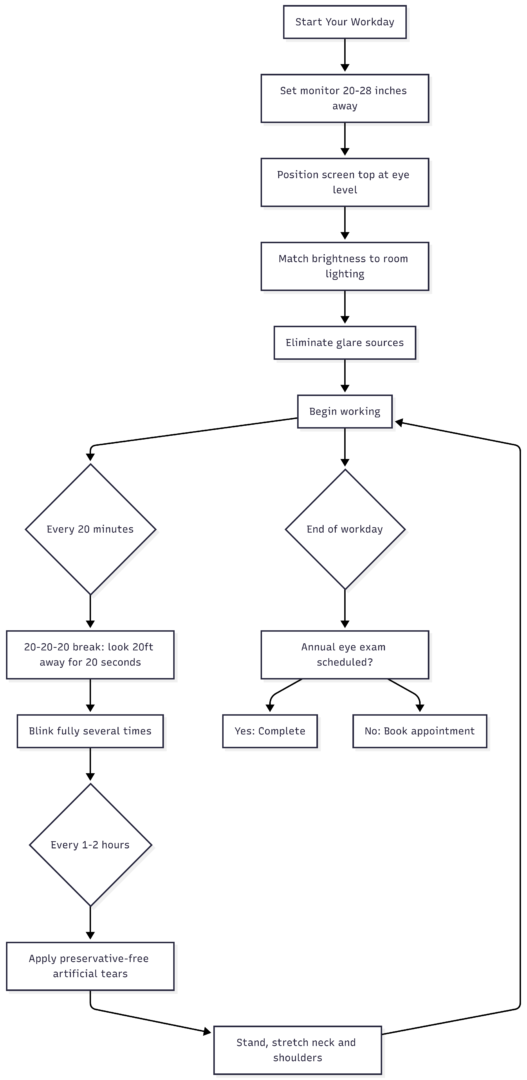
Complete Eye Strain Prevention Checklist
When to See an Eye Specialist
Self-care strategies resolve the vast majority of digital eye strain cases. However, some symptoms warrant a professional evaluation:
- Blurred vision that does not clear after resting your eyes
- Persistent headaches that occur daily
- Double vision at any distance
- Eye pain (as opposed to fatigue or dryness)
- Light sensitivity that worsens over time
- Any sudden change in vision
When preparing for an appointment, keep a brief log of your daily screen time, symptoms, and their timing. This information helps your optometrist identify whether the issue is purely ergonomic or whether an underlying refractive error, dry eye disease, or binocular vision problem requires treatment.
Final Thoughts
Eye strain during remote work is not inevitable. The combination of a correctly positioned monitor, controlled room lighting, deliberate blinking habits, proper air quality, and the right eyewear addresses the root causes rather than just masking the symptoms.
Most of these adjustments take minutes to implement and cost nothing. The 20-20-20 rule, in particular, is free and effective immediately. Start there, layer in the setup and environment changes, and you will notice a measurable difference in how your eyes feel at the end of a full workday.
Your vision is the tool you rely on more than any other during remote work. Protecting it is worth the attention.
Please share this Mexican Sink Buyers Guide with your friends and do a comment below about your feedback.
We will meet you on next article.
Until you can read, 7 Free Online Certification Courses to Improve Your Skills