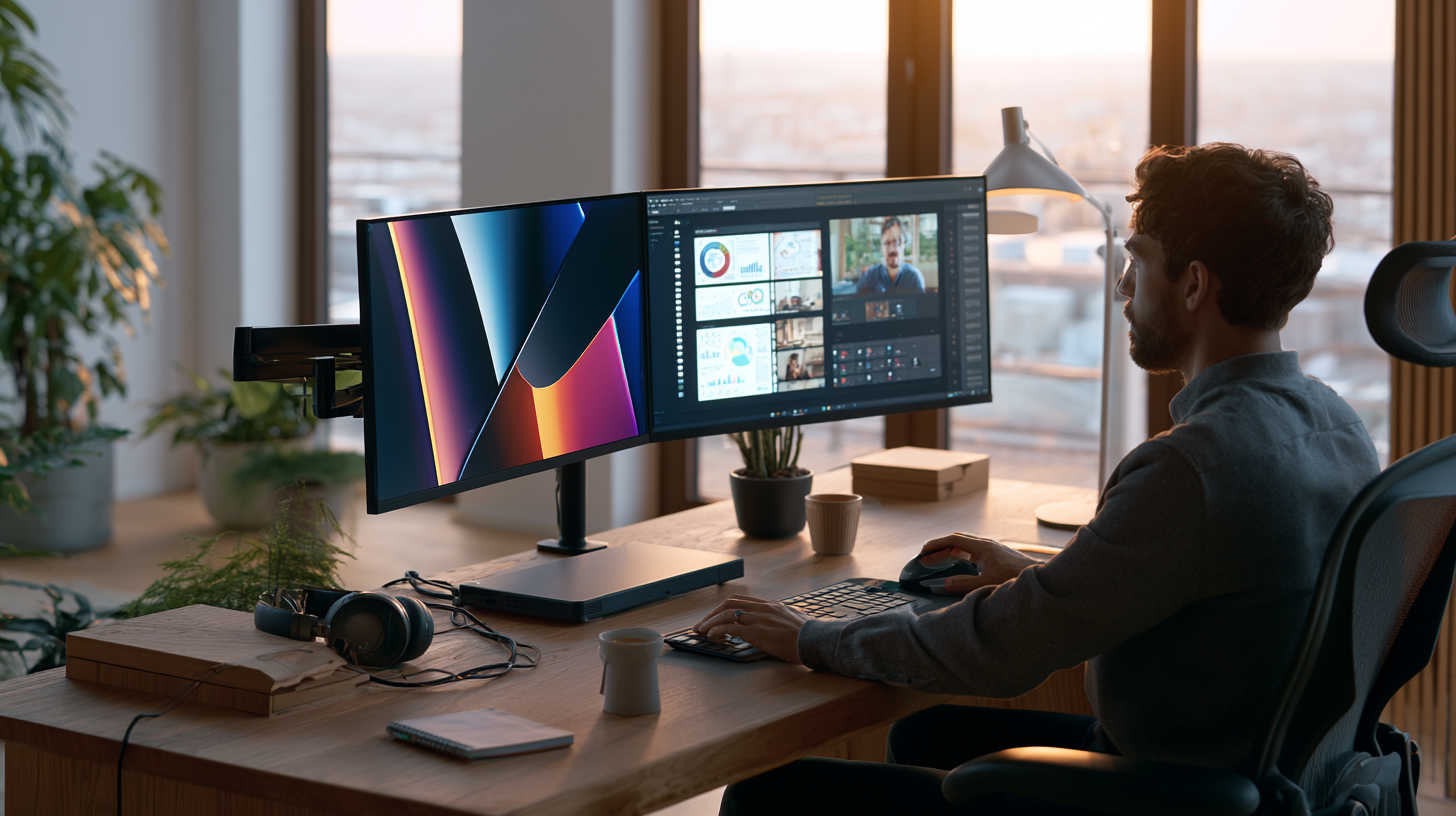
Five Reasons Why Home Office Monitor Setup Is Important
A laptop screen was never designed to be someone’s only display for eight hours a day. Yet that’s exactly how many remote workers operate — hunched over a 13 or 15-inch panel, alt-tabbing between a dozen windows, squinting at small text.
A proper home office monitor setup fixes this directly, and the evidence for it isn’t just anecdotal. Multiple independent studies, from university usability labs to enterprise research groups, have measured the same result: more and better-positioned screen space translates into measurable productivity, accuracy, and comfort gains.
Here are five research-backed reasons a real monitor setup belongs in every home office, along with the specs and pricing to get started.
1. Superior Ergonomics and Long-Term Health
Working exclusively off a laptop screen forces a hunched neck and rounded shoulders, since the screen sits low and close by design. Over months or years, this posture is directly linked to chronic neck, shoulder, and back pain. An ergonomic monitor setup fixes the root cause: the top of the screen should sit at eye level, roughly an arm’s length away, so the neck stays in a neutral position rather than tilted down or forward.
Adjustable monitor arms make this achievable on almost any desk. They let you set height, tilt, swivel, and depth independently of the monitor’s built-in stand, and they free up desk space that a bulky base would otherwise occupy. For dual-monitor setups, positioning both screens at a consistent distance from the eyes prevents the constant refocusing that happens when one screen is closer than the other — a subtle but real source of eye fatigue.
2. Boosted Productivity and Reduced Context-Switching
This is the reason with the deepest research backing. Multiple independent studies over the past two decades have quantified what most multi-monitor users already sense intuitively:
- Early usability research out of the University of Utah found dual-monitor setups significantly outperformed single screens on effectiveness, comfort, and error recovery, with the overwhelming majority of test users preferring two screens once they’d tried them.
- Internal research from Microsoft measured productivity gains ranging from roughly 9% to 50% depending on task complexity, with the largest gains on tasks involving comparing or transferring information between applications.
- A study commissioned by Dell and conducted at Wichita State University’s usability lab found dual-monitor users were about 18% more efficient on multi-source tasks, with 15% fewer window switches and higher satisfaction scores.
- Large-scale surveys from Jon Peddie Research, repeated across multiple years, found a consistent average self-reported productivity increase of around 42% among multi-monitor users.
- Industry-specific data adds more texture: accounting and tax professionals have reported productivity gains of 30% or more from adding a second monitor, and one study on three-monitor configurations found gains near 35%.
The mechanism behind these numbers is straightforward: expanding screen real estate reduces the constant minimizing, maximizing, and alt-tabbing that fragments attention. Instead of holding information in short-term memory while switching windows, you can view a reference document, spreadsheet, or chat window continuously alongside your primary task.
3. Enhanced Virtual Meeting and Collaboration Experience
Video calls introduce a specific version of the single-screen problem: keeping the meeting window (and the people in it) visible while also taking notes, reviewing a shared document, or checking a project board. On one screen, this means constantly resizing windows or losing sight of the call entirely. A second monitor solves this by letting the meeting stay fully visible on one display while notes, documents, or a shared file live on the other.
This matters more than it might seem. Studies on remote collaboration consistently find that visual engagement — actually looking at colleagues rather than a document — improves communication quality and reduces the sense of disconnect that video calls are already prone to. A dedicated “meeting screen” removes the friction that pulls attention away from the conversation.
4. Reduced Eye and Mental Fatigue
Small screens force smaller text, tighter window layouts, and more scrolling — all of which compound eye strain over a workday. A larger or higher-resolution monitor renders sharper, more readable text at a comfortable size, while a second screen eliminates the need to scroll constantly through long documents by letting you view more content at once.
Mental fatigue compounds similarly. Every window switch requires a small cognitive reset — relocating where you left off, re-establishing context. Multiplied across a full workday, this “switching cost” adds up to meaningful mental drain. Expanded screen space reduces the frequency of these resets, which is part of why so many multi-monitor studies report not just faster task completion, but lower reported frustration and stress.
5. Improved Focus Through Controlled Visual Field
Somewhat counterintuitively, more screens can mean fewer distractions, not more — when arranged deliberately. A monitor setup lets you dedicate specific screens to specific tasks, narrowing the field of vision to only what’s relevant to the work at hand rather than a browser window buried among a dozen background tabs. Traders commonly dedicate individual monitors to news, charting, and execution; developers dedicate one to code and another to logs or documentation; designers dedicate one to the canvas and another to tools and references. In each case, the layout itself becomes a form of structure that keeps attention where it needs to be.
Productivity Research Summary
| Source | Reported Productivity Gain | Notes |
|---|---|---|
| University of Utah usability study | Significantly higher usability and comfort | 98% of test users preferred dual monitors after trying them |
| Microsoft Research | 9%–50% depending on task | Largest gains on complex, multi-source tasks |
| Wichita State / Dell study | ~18% efficiency gain | 15% fewer window switches, high satisfaction |
| Jon Peddie Research (multi-year survey) | ~42% self-reported average | Consistent across multiple survey years |
| Accounting/tax industry data | 30%+ | Driven by side-by-side source document and software use |
| Three-monitor configuration studies | ~35% | Diminishing but still meaningful returns beyond two screens |
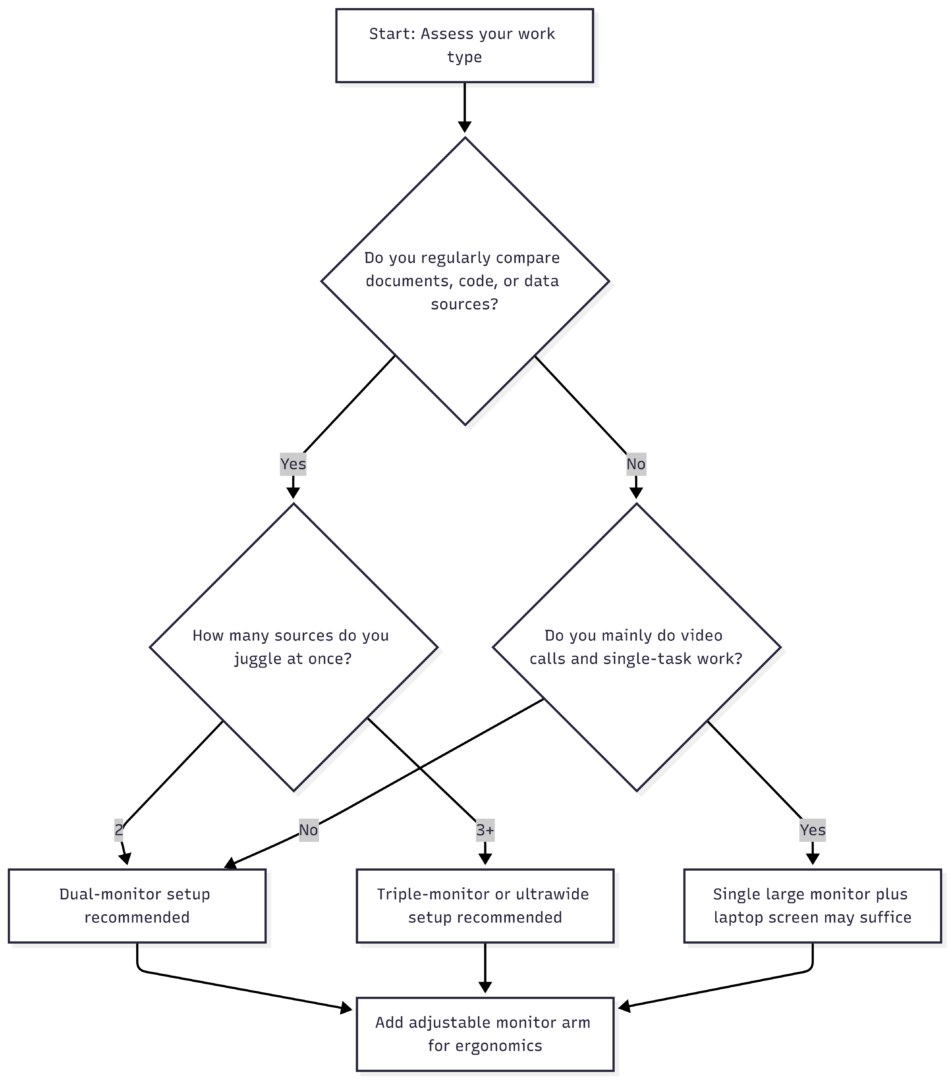
How to Choose Your Setup: Decision Flow
Monitor and Mount Specifications and Pricing
| Item | Typical Specs | Approximate Price Range |
|---|---|---|
| Entry-level 24″ monitor (1080p) | 1920×1080, 60Hz, IPS panel | $100–$180 |
| Mid-range 27″ monitor (1440p) | 2560×1440, 75Hz+, IPS panel | $200–$350 |
| High-end 27″–32″ monitor (4K) | 3840×2160, IPS or OLED | $350–$700+ |
| Ultrawide monitor (34″) | 3440×1440, curved, 100Hz+ | $400–$800 |
| Single monitor arm (adjustable) | Height/tilt/swivel, gas spring | $40–$120 |
| Dual monitor arm (crossbar) | Aligned dual-arm mount | $80–$200 |
| Docking station (for laptops) | Thunderbolt/USB-C, dual display output | $80–$250 |
Two mid-sized monitors are often more cost-effective than a single very large display while providing more total pixel count and greater layout flexibility — worth factoring in when budgeting a setup.
Best Practices for a Multi-Monitor Home Office
- Match resolution and size across monitors when possible, so cursor movement and text size stay consistent between screens.
- Center your primary display directly in front of you, with secondary monitors angled slightly inward to reduce neck rotation.
- Keep viewing distance consistent across all screens — roughly 20–28 inches — to avoid the eye strain caused by constantly refocusing at different distances.
- Use a portrait orientation for one monitor if you work with long documents or code, to reduce scrolling.
- Invest in adjustable arms rather than relying on stock monitor stands, since arms allow far more precise height, tilt, and depth control.
- Avoid overloading your field of view. More screens help only when each one has a clear, distinct purpose — cluttering multiple displays with dozens of small windows can undo the focus benefits entirely.
Common Pitfalls to Avoid
Even a well-intentioned monitor upgrade can backfire if the setup isn’t dialed in. The most frequent issues are screens positioned too low (forcing the neck down), too far apart (causing excessive head turning), or at inconsistent distances (causing eye strain from refocusing).
A second monitor used purely for non-work distractions, like constant social media or email notifications, can also erode the exact focus benefits the setup is meant to provide. Getting the physical positioning right, and being intentional about what lives on each screen, resolves nearly all of these problems.
Frequently Asked Questions
It depends on the task. A single large or ultrawide display works well for straightforward work and video calls, while dual monitors tend to perform better for tasks that involve comparing or transferring information between separate applications. Cost-wise, two mid-sized monitors are often cheaper than one very large one while offering more total screen space.
The top of the screen should sit at or slightly below eye level, so your neck stays in a neutral, forward-facing position rather than tilting up or down for extended periods.
A stock stand works for basic use, but an adjustable arm provides far more precise control over height, tilt, swivel, and depth — particularly valuable for dual-monitor setups where consistent positioning across both screens matters.
Two monitors deliver the largest jump in productivity for most people. A third can help specific workflows, like data analysis or trading, but returns diminish beyond that, and too many screens can lead to visual clutter and reduced focus rather than improved productivity.
Yes. Larger, higher-resolution displays render text more clearly at a comfortable size, and a properly positioned second monitor reduces the need for constant scrolling and squinting that a single small screen requires.
A dual 24–27″ monitor setup with an adjustable dual-monitor arm typically runs somewhere between $350 and $700 total, depending on resolution and monitor quality — an investment that most research suggests pays for itself quickly through productivity gains alone.
A home office monitor setup isn’t a luxury upgrade — it’s one of the highest-return investments available for anyone working from home regularly. The combination of better ergonomics, reduced context-switching, smoother virtual collaboration, lower eye strain, and improved focus adds up to a workday that’s both more comfortable and measurably more productive, often for a few hundred dollars in one-time hardware costs.
Please share this The 20 Most Popular Bible Verses with your friends and do a comment below about your feedback.
We will meet you on next article.
Until you can read, Using Virtual Reality When You’re Working From Home