
10 Best Collaboration Tools for Remote Teams
Remote teams don’t fail because people aren’t working hard — they fail because work is scattered across six different apps, three of which nobody checks consistently. Slack threads bury decisions, email chains lose context, and status updates live in someone’s head instead of a shared board. The fix isn’t adding another app to the pile. It’s picking the right combination of tools and using them deliberately.
This guide breaks down the 10 best collaboration tools for remote teams in 2026, based on hands-on testing across communication, project management, and visual collaboration categories. Each entry includes pricing, standout features, and honest trade-offs so you can match the tool to your team’s actual workflow instead of chasing whatever has the loudest marketing.
Quick Comparison: Best Collaboration Tools for Remote Teams
| # | Tool | Best For | Starting Price | Free Option |
|---|---|---|---|---|
| 1 | monday Work Management | Flexible, role-based dashboards | $9/user/month (billed annually) | 14-day trial |
| 2 | Wrike | Cross-location project management | $10/user/month (billed annually) | 14-day trial |
| 3 | Miro | Collaborative whiteboarding | $8/member/month (billed annually) | Free plan |
| 4 | Missive | Guest access for external partners | $14/user/month (billed annually) | 30-day trial + free plan |
| 5 | Notion | All-in-one workspace | $10/user/month (billed annually) | Free plan |
| 6 | MeisterTask | In-task collaboration | $13/user/month (billed annually) | Free trial + free plan |
| 7 | Zoom Workplace | Video conferencing and webinars | $14.16/month (billed annually) | Free plan |
| 8 | Ziflow | Creative asset review | $199/month (billed annually) | 14-day trial + free plan |
| 9 | Trello | Visual, card-based task management | $5/user/month (billed annually) | 14-day trial |
| 10 | Google Workspace | Integrated docs, chat, and storage | $7/user/month (billed annually) | 14-day trial |
How to Pick the Right Tool for Your Team
Before comparing feature lists, it helps to map the decision against what your team actually struggles with — too many meetings, lost files, unclear ownership, or scattered feedback. The flow below shows a simplified way to narrow the list based on your primary pain point.
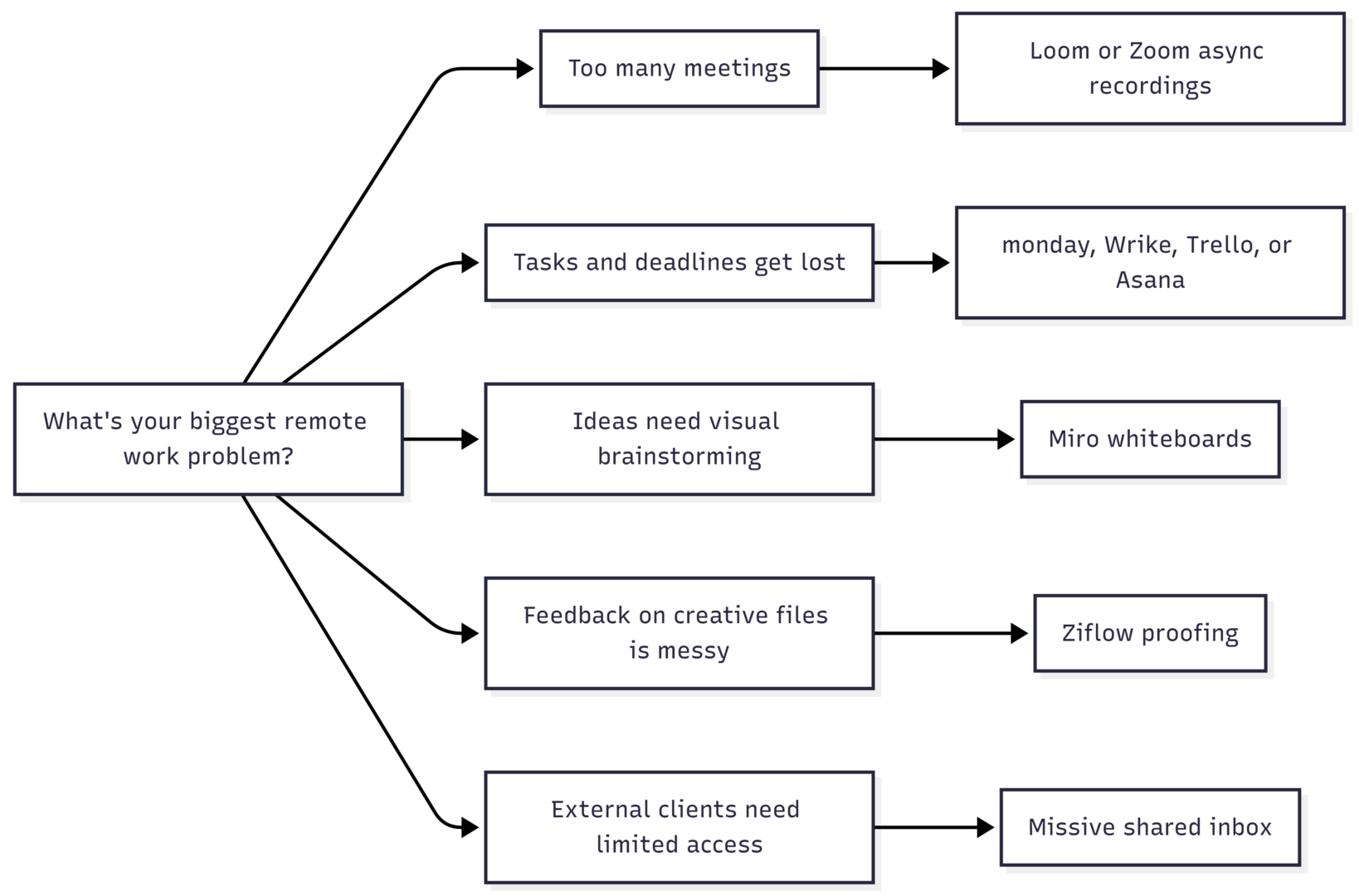
Use this as a starting filter, then narrow further using the detailed reviews below.
1. monday Work Management — Best for Flexible Dashboards
Rating: 4.6/5 | Price: From $9/user/month (billed annually) | Trial: 14 days free
monday’s biggest strength is dashboard flexibility. Every person can see a view tailored to their role — leadership tracks high-level risk and progress, while individual contributors see only their task-level updates. That separation cuts down on noise, which matters more for remote teams than it does for co-located ones, since there’s no hallway conversation to fill in context gaps.
Specifications:
- Custom boards, dashboards, and automations
- Role-based views and permissions
- Native time tracking and workload management
- 200+ integrations (Slack, Zoom, Google Drive, GitHub)
Best for: Distributed teams that want real-time, customizable dashboards and cross-functional groups sharing visual updates.
Not ideal for: Teams needing strict process compliance or multi-layered approval chains — monday favors visual flexibility over rigid governance.
Pros:
- Real-time updates and solid mobile access
- Highly customizable boards adapt to how your team actually works
- Strong visibility across projects for distributed teams
Cons:
- Boards can get messy without disciplined setup as projects scale
- Free and Basic tiers lack key views and automation
2. Wrike — Best for Cross-Location Project Management
Rating: 4.3/5 | Price: From $10/user/month (billed annually) | Trial: 14 days free
Wrike is built for teams that need structure without the overhead of a tool like Jira. Custom dashboards and “Spaces” keep distributed teams aligned even as priorities shift across time zones, and built-in proofing plus request forms replace a lot of the email back-and-forth that normally derails approvals.
Specifications:
- Gantt charts, workload views, and custom request forms
- Built-in proofing and approval workflows
- In-app chat for lightweight communication
- Up to 10 workflows per Space (a real limitation for larger orgs)
Best for: Distributed project teams with structured task dependencies and groups managing formal approvals at scale.
Not ideal for: Small teams that want minimal setup — Wrike’s process requirements can slow down lightweight workflows.
Pros:
- Clear visualization of workflow performance
- Individual and team workload tracking
- Reduces context-switching with in-app chat
Cons:
- Workflow limit per Space can constrain larger organizations
- Steeper setup curve than lighter tools like Trello
3. Miro — Best for Collaborative Whiteboards
Rating: 4.8/5 | Price: From $8/member/month (billed annually) | Free plan available
Miro gives remote teams a genuine shared visual workspace rather than just a digital sticky-note board. Product, design, and Agile teams use it to co-create roadmaps, flowcharts, and retrospectives in real time — capturing the same energy as an in-person whiteboard session without anyone in the same room.
Specifications:
- Infinite canvas with real-time multi-cursor editing
- Templates for retros, mapping, and workshops
- Video chat and async commenting built into the canvas
- Integrations with Slack, Jira, Asana, and Google Workspace
Best for: Remote product, design, or Agile teams brainstorming and mapping ideas visually.
Not ideal for: Teams needing detailed task management or Gantt-style planning — Miro isn’t built for linear workflows.
Pros:
- Embedded communication tools reduce app-switching
- Infinite canvas handles complex, sprawling projects
- Supports both real-time and asynchronous work
Cons:
- Some third-party integrations need extra setup
- Large boards can slow down performance
4. Missive — Best for Guest Access with External Partners
Rating: 4.8/5 | Price: From $14/user/month (billed annually) | Trial: 30 days + free plan + demo
Missive merges team email, chat, and tasks into one shared inbox — and its standout feature is tightly controlled guest access. You can loop in clients directly on relevant threads without exposing internal channels, then assign, triage, and discuss messages side by side with your own team.
Specifications:
- Shared team inbox with internal comment threads
- Guest roles and permissions (paid plans only)
- Cross-channel conversation merging
- No built-in video or voice calling
Best for: Remote teams collaborating regularly with external clients or partners, and groups managing mixed email/chat workflows.
Not ideal for: Teams wanting traditional project management features like Gantt charts or backlog tracking.
Pros:
- Shared labels keep the whole team organized
- Internal comments on any thread avoid “reply-all” chaos
- Merges related conversations from multiple channels into one
Cons:
- Guest access requires upgrading to a paid tier
- No native video calling means pairing with Zoom or Meet
5. Notion — Best All-in-One Workspace
Rating: 4.6/5 | Price: From $10/user/month (billed annually) | Free plan available
Notion handles documentation and live project work in the same place, which suits teams that constantly jump between meeting notes, wikis, and task boards. Pages, databases, and tasks connect to each other, so context doesn’t get lost the way it does when docs live in Drive and tasks live somewhere else entirely.
Specifications:
- Connected pages, databases, and Kanban/task views
- Built-in AI assistant for drafting and summarizing
- Multilingual interface support
- Limited offline access compared to native apps
Best for: Remote teams that want documentation, planning, and tracking to live in one connected workspace.
Not ideal for: Teams needing advanced task dependencies or true Gantt-style timeline views.
Pros:
- Multilingual support for global teams
- Integrated AI assistant speeds up drafting and notes
- Highly customizable pages and templates
Cons:
- Limited offline functionality
- Steeper learning curve for new users setting up structure
6. MeisterTask — Best for In-Task Collaboration
Rating: 4.7/5 | Price: From $13/user/month (billed annually) | Free trial + free plan + demo
MeisterTask keeps conversation, files, and updates attached directly to each task card instead of splitting discussion across email or chat. For remote teams juggling several concurrent projects, keeping feedback and decisions tied to the specific task makes it far easier to follow the thread later.
Specifications:
- Visual Kanban boards with custom stages
- Role-based permissions and access control
- Real-time task updates and comment threads
- Native mobile apps (with occasional sync lag reported)
Best for: Remote teams managing projects with heavy task-level discussion and real-time collaboration needs.
Not ideal for: Organizations needing advanced reporting, portfolio management, or complex multi-level automation.
Pros:
- Visual boards give clear progress at a glance
- Granular roles and permissions control access
- Real-time updates keep everyone informed
Cons:
- Advanced features carry a learning curve
- Mobile app sync issues reported by some users
7. Zoom Workplace — Best for Video Conferencing and Webinars
Rating: 4.5/5 | Price: From $14.16/month (billed annually) | Free plan + demo available
Zoom remains the standard for reliable, high-quality video across both small syncs and large company-wide webinars. Recording, breakout rooms, and interactive polling make it the default choice for training sessions and all-hands meetings where a lot of people need to be reached at once.
Specifications:
- HD video and audio with breakout rooms
- Webinar hosting for up to thousands of attendees (plan-dependent)
- Cloud recording and automated transcripts
- Screen sharing and live annotation
Best for: Remote teams needing dependable video meetings, webinars, and recorded training sessions.
Not ideal for: Teams wanting persistent chat, threaded discussions, or integrated document collaboration — Zoom is meeting-first, not conversation-first.
Pros:
- User-friendly interface with minimal setup
- Deep integration ecosystem
- Consistently high video and audio quality
Cons:
- Free plan has real limitations on meeting length and features
- Conversation history disappears between sessions
8. Ziflow — Best for Creative Asset Collaboration
Rating: 4.6/5 | Price: From $199/month (billed annually) | Trial: 14 days + free plan + demo
Ziflow is built for teams reviewing creative work — images, video, PDFs — where feedback needs to live directly on the asset rather than scattered across email. Markup tools, comment threads, and approval stages all sit in one interface, which keeps fast-moving creative cycles from stalling out.
Specifications:
- Frame-accurate video markup and time-stamped comments
- Automated approval workflows with version comparison
- Supports a wide range of file formats (image, video, PDF, HTML5)
- Higher-tier integrations gated behind premium plans
Best for: Creative teams needing visual asset review and remote teams managing multi-format content approvals.
Not ideal for: Teams focused primarily on task or workflow management rather than creative review.
Pros:
- Automated workflows streamline approvals
- Precise, in-context commenting on the asset itself
- Broad file-format support
Cons:
- Many integrations limited to higher-tier plans
- Notification volume can get overwhelming without tuning
9. Trello — Best for Visual Task Management
Rating: 4.5/5 | Price: From $5/user/month (billed annually) | Trial: 14 days free
Trello’s card-and-board system is still one of the simplest ways to give a remote team a shared visual sense of progress. Drag-and-drop boards work well for standups, sprint tracking, and handoffs, and switching between board layouts takes seconds rather than a configuration project.
Specifications:
- Kanban boards with customizable lists and labels
- Power-Ups for automation and third-party integrations
- Butler automation for repetitive actions
- Calendar and timeline view add-ons
Best for: Remote teams that want a clear visual workflow and groups organizing simple, ongoing projects.
Not ideal for: Projects with complex dependencies, resource management needs, or built-in time tracking.
Pros:
- Easy to learn and use immediately
- Highly customizable workflows via Power-Ups
- Strong visual task management out of the box
Cons:
- Boards get cluttered as card count grows
- Reporting features are limited compared to dedicated PM tools
10. Google Workspace — Best for Integrated Productivity Tools
Rating: 4.6/5 | Price: From $7/user/month (billed annually) | Trial: 14 days free
Google Workspace bundles chat, video, document co-editing, and cloud storage into a single ecosystem at a quality level few competitors match across every category simultaneously. Teams write and edit in Docs, then jump into Meet or Chat without leaving the same login — which keeps context-switching low.
Specifications:
- Real-time co-editing in Docs, Sheets, and Slides
- Google Meet video conferencing and Google Chat
- Shared Drive storage with granular sharing controls
- Admin console for security and device management
Best for: Remote teams wanting integrated document and communication tools, and organizations standardizing on real-time collaboration.
Not ideal for: Teams needing advanced workflow automation or dedicated project management boards.
Pros:
- Strong security controls and admin management
- Genuinely real-time collaborative editing
- Comprehensive suite covers most daily needs
Cons:
- Learning curve for teams new to the Google ecosystem
- Heavily dependent on a stable internet connection
Feature Comparison at a Glance
| Feature | monday | Wrike | Miro | Notion | Trello | Google Workspace |
|---|---|---|---|---|---|---|
| Task/project boards | ✅ | ✅ | ⚠️ Limited | ✅ | ✅ | ⚠️ Limited |
| Visual whiteboarding | ⚠️ Basic | ⚠️ Basic | ✅ | ⚠️ Basic | ❌ | ❌ |
| Native video calls | ❌ | ❌ | ✅ | ❌ | ❌ | ✅ |
| Guest/client access | ✅ | ✅ | ✅ | ✅ | ✅ | ✅ |
| Built-in AI assistant | ✅ | ✅ | ⚠️ Limited | ✅ | ⚠️ Limited | ✅ |
| Free plan | ⚠️ Trial only | ⚠️ Trial only | ✅ | ✅ | ⚠️ Trial only | ⚠️ Trial only |
Other Collaboration Tools Worth Checking
These didn’t make the top 10 but are worth a look depending on your specific need:
| Tool | Known For |
|---|---|
| ProofHub | Centralized project collaboration |
| awork | AI-assisted project scheduling |
| Microsoft Teams | Team communication and Microsoft 365 integration |
| Happeo | Intranet and internal communications |
| Guru | Knowledge documentation collaboration |
| Around | Inclusive hybrid-remote meetings |
| ClickUp | Highly customizable project management |
| Hiver | Shared inbox management (built on Gmail) |
| Slack | Real-time, channel-based team communication |
| Basecamp | Simple, flat-rate project management |
How These Tools Were Evaluated
Each tool was scored on six core functions that any remote team relies on daily: real-time messaging, file sharing and co-editing, video conferencing, task and project coordination, third-party integrations, and asynchronous collaboration support. Tools needed a minimum combined score of 65% across these categories to make the list.
Beyond the baseline, differentiation came down to a few things: AI features like meeting summaries and action-item extraction, quality of async video messaging, how cleanly a platform handles guest and client access, and security posture — SOC 2 Type II certification, SSO, and SCIM provisioning are now baseline expectations rather than nice-to-haves for any tool handling cross-border project data.
Pricing Overview by Plan Tier
| Plan Type | Typical Price Range | Common Features |
|---|---|---|
| Free | $0 | Basic messaging, limited file sharing and integrations, basic task tracking |
| Personal/Starter | $5–$10/user/month | Enhanced messaging, file sharing, basic project management, limited video |
| Business | $10–$20/user/month | Advanced messaging, full file sharing, admin controls, video conferencing, broader integrations |
| Enterprise | $20–$30/user/month | Everything in Business plus advanced security, compliance, custom integrations, dedicated support |
Trends Shaping Remote Collaboration Tools
- AI-powered project management. AI is increasingly handling routine coordination — auto-generating status summaries, flagging at-risk tasks, and surfacing predictive risk signals so teams can focus on decisions rather than data entry.
- Asynchronous-first communication. Recorded video updates and threaded async discussions continue to gain ground over live meetings, since they let teammates contribute on their own schedule — essential when a team spans more than two or three time zones.
- Deeper workflow automation. Tools increasingly connect to each other directly, reducing manual data entry and keeping information consistent across a stack instead of siloed in one app.
- Stronger security baselines. Encryption, multi-factor authentication, and compliance certifications (SOC 2, GDPR, HIPAA where relevant) are now expected by default rather than treated as premium add-ons.
What Are Collaboration Tools for Remote Teams?
Collaboration tools for remote teams are software platforms designed to support communication, coordination, and shared work among people who aren’t in the same physical location.
They typically combine messaging, video conferencing, file sharing, task management, and collaborative document editing into one connected system — letting distributed teams stay organized and productive without relying on in-person interaction.
Key Features to Look For
- Unified communication: Consolidates chat, email, files, and calendar events into one place, cutting down on app-switching.
- Real-time collaboration: Instant feedback and shared editing keep decisions moving without waiting for a scheduled call.
- Calendar integration: Ties meetings and deadlines to the broader conversation so nothing falls through the cracks.
- Voice and screen sharing: Adds a face-to-face element to distributed work when it’s genuinely needed.
- File sharing and storage: Fast access to documents without waiting on someone to send an attachment.
- Security and privacy: Encryption, access controls, and regular security updates protect sensitive project data.
- Third-party integrations: Connects to the rest of your stack instead of forcing you to migrate everything at once.
- Mobile access: Keeps remote and hybrid team members connected away from their desk.
Benefits of Using Collaboration Tools
- Improved communication — video, messaging, and channels keep everyone connected regardless of location.
- Increased productivity — automation and streamlined workflows free up time for higher-value work.
- Enhanced flexibility — team members can work from anywhere, on schedules that fit their time zone.
- Better project management — task assignments, tracking, and reminders keep projects on schedule.
- Cost savings — less reliance on physical office space and travel reduces overhead.
Frequently Asked Questions
Choose tools with end-to-end encryption, multi-factor authentication, and relevant compliance certifications (GDPR, HIPAA where applicable). Keep software updated and train the team on basic security hygiene.
Start with a needs assessment, check compatibility with current systems, and involve IT early. Common integrations (like project management tools connecting to Microsoft Teams) usually have pre-built connectors; less common ones may need API work through a third-party integration platform.
Track project completion rates, team productivity, and user satisfaction using each platform’s built-in analytics, and supplement with periodic team surveys.
Provide real training, not just a welcome email. Involve the team in the selection process, explain the specific problem the tool solves, and create space for feedback once it’s in use.
Lean on shared calendars, async video updates, and recorded meetings for anyone who couldn’t attend live. Schedule recurring check-ins at times that rotate fairly across time zones rather than always favoring one region.
Tool overload, low engagement, and technical friction are the most common issues. Keep the stack lean, train people properly, and review usage regularly to cut anything that isn’t earning its place.
Yes — most platforms on this list offer a free tier or trial with core messaging, file sharing, and task management. Free plans typically cap users, storage, or advanced features, but they’re a solid starting point for small teams or startups on a tight budget.
Final Thoughts
The right collaboration stack isn’t the one with the most features — it’s the smallest set of tools that covers messaging, task coordination, and visual or async work without forcing your team to context-switch all day. Start with the problem you’re actually trying to solve — too many meetings, lost tasks, or scattered feedback — and work backward from there using the comparisons above.
Please share this 10 Best Collaboration Tools for Remote Teams your friends and do a comment below about your feedback.
We will meet you on next article.
Until you can read, Celebrating Mothers: Honoring God’s Vision for Women