
5 Common IT Problems When Work from Home
Remote work removed the daily commute, but it also removed the IT department down the hall. When your internet drops mid-call or your VPN refuses to connect, there’s no help desk to walk over to — you’re the first line of troubleshooting.
The good news is that the vast majority of work-from-home tech problems fall into just five categories, and most have a fast, repeatable fix. This guide walks through each one, what causes it, how to solve it yourself, and when it’s time to escalate to IT.
Overview: The 5 Most Common WFH IT Problems
| # | Problem | Typical Cause | Fixable Without IT? |
|---|---|---|---|
| 1 | Slow or dropping internet | Router issues, weak Wi-Fi, bandwidth overload | Usually yes |
| 2 | Software freezing or crashing | Outdated apps, full memory, background programs | Usually yes |
| 3 | VPN connection failures | Outdated client, wrong credentials, server issues | Sometimes |
| 4 | Broken or unresponsive hardware | Loose cables, driver issues, physical failure | Sometimes |
| 5 | Security concerns (phishing, malware) | Suspicious emails, outdated security tools | Rarely — escalate immediately |
1. Slow or Unreliable Internet Connections
This is the single most disruptive remote work problem, since it affects everything from video calls to file uploads. It usually shows up as dropped calls, slow downloads, or endless buffering during screen shares.
Quick Fixes
- Run a speed test and compare the result to your plan’s advertised speed
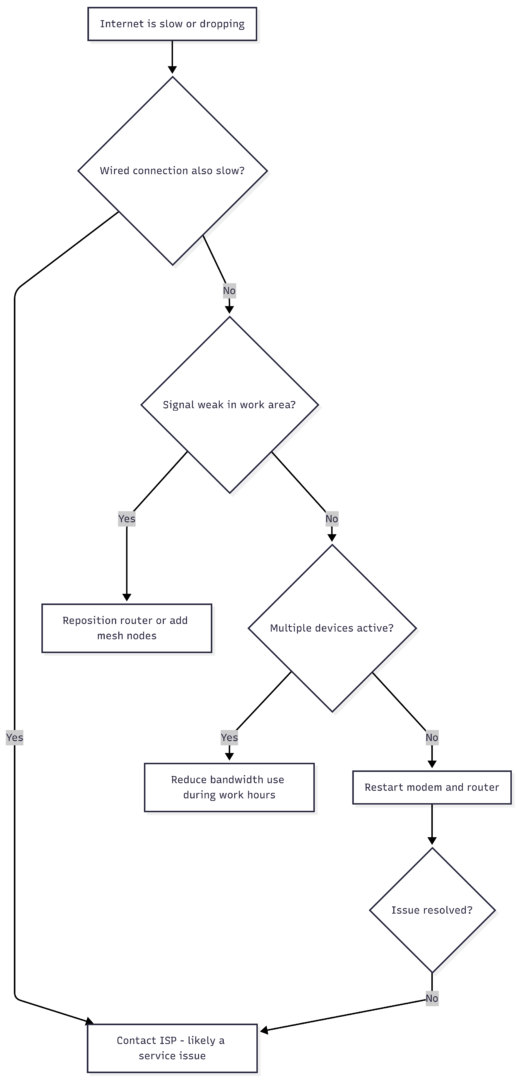
- Restart your modem and router: unplug both for 30 seconds, plug the modem in first, wait for it to fully reconnect, then plug in the router
- Connect your computer directly to the router with an Ethernet cable to check whether the problem is your Wi-Fi signal or the connection itself
- Pause large downloads, streaming devices, or cloud backups during work hours
- Move your router to a central, open location away from thick walls and metal appliances
Troubleshooting Flow
Internet Connection Types Compared
| Connection Type | Typical Download Speed | Typical Upload Speed | Best For Remote Work? |
|---|---|---|---|
| DSL | 5–100 Mbps | 1–20 Mbps | Basic tasks only |
| Cable | 100–500 Mbps | 10–35 Mbps | Good, but upload-limited |
| Fiber | 300 Mbps–2 Gbps | 300 Mbps–2 Gbps (symmetrical) | Best overall |
| 4G/5G Mobile Hotspot | 10–300 Mbps | 5–50 Mbps | Reliable backup option |
| Satellite (e.g., Starlink) | 25–220 Mbps | 5–20 Mbps | Best for rural backup |
Fiber is the strongest option for remote work because upload and download speeds are symmetrical — video calls and cloud uploads perform as well as downloads, which cable and DSL connections generally can’t match.
Wi-Fi Dead Zones
If your work area is far from the router, signal strength drops fast. Two fixes work well:
- Run a hardwired Ethernet line from the router to your desk for the most stable possible connection
- Install a mesh Wi-Fi system (multiple networked nodes placed around the home) so devices automatically connect to whichever node has the strongest signal
Backup Options for Outages
| Backup Method | Approx. Cost | Notes |
|---|---|---|
| Phone hotspot tethering | Included in most mobile plans, or ~$10–25/month add-on | Fastest to set up, limited by data cap |
| Dedicated 4G/5G LTE router | $100–250 one-time + data plan | More stable than phone tethering |
| UPS (battery backup) for router/modem | $50–150 | Keeps internet running through short power outages |
| Portable power station (e.g., Jackery, EcoFlow) | $200–800 | Powers router, modem, and laptop for hours |
| Satellite backup (e.g., Starlink Mini) | ~$400 hardware + monthly plan | Works when local ISP infrastructure is down |
| Dual-WAN router with two ISPs | $150–300 + second ISP cost | Automatic failover between two providers |
2. Computer Software Freezing, Crashing, or Loading Slowly
Software problems usually build up gradually — an operating system that hasn’t been updated in months, too many background programs, or a hard drive clogged with temporary files.
Quick Fixes
- Keep your operating system and applications updated; many bugs are patched in routine updates
- Clear temporary files and browser cache regularly to free up memory
- Disable unnecessary startup programs so your computer boots and runs faster
- Restart your computer at least once a day rather than only closing the lid
- Check available storage — a nearly full hard drive can slow down every application
3. VPN Connection Failures
A VPN (Virtual Private Network) encrypts your connection to company systems and verifies that only authorized users can access internal data. When it fails, you’re often locked out of core work tools entirely.
Quick Fixes
- Update to the latest version of your VPN client software
- Double-check your login credentials and any multi-factor authentication step
- Restart the VPN application, then restart your computer if the issue persists
- Confirm your regular internet connection is stable before assuming the VPN itself is broken
- If none of the above works, contact IT with the exact error message — this speeds up diagnosis significantly
4. Broken or Unresponsive Hardware
Without an IT department to swap out a faulty mouse or monitor cable, small hardware issues can bring work to a stop.
Quick Fixes
- Check every cable connection — a loose HDMI, USB, or power cable is the most common cause of “broken” hardware
- Restart the device; this resolves a surprising number of hardware glitches
- Try the peripheral on a different port or a different device to isolate whether it’s the hardware or the connection
- If a component is genuinely failing (dead pixels, unresponsive keys, physical damage), contact IT for a repair or replacement rather than attempting a fix yourself, especially on company-owned equipment
5. Security Concerns: Phishing, Malware, and Data Risk
Remote work environments are frequent targets for phishing emails and malware, partly because employees are working outside the protections of a centralized office network.
Prevention Checklist
- Never click links or download attachments from unfamiliar or suspicious emails
- Keep antivirus and endpoint security tools updated and running
- Use a password manager to generate and store strong, unique passwords
- Avoid using public Wi-Fi for work tasks; use a VPN if you must connect on an untrusted network
- Don’t let family members or friends use work devices
- Report anything suspicious to IT immediately rather than waiting to see if it resolves itself
Recommended Remote Security Stack
| Tool Type | Purpose | Examples |
|---|---|---|
| Password manager | Generate and store unique credentials | 1Password, Bitwarden |
| Antivirus / endpoint protection | Detect and block malware | Company-issued or Windows Defender, Malwarebytes |
| VPN | Encrypt traffic on untrusted networks | Company VPN client, or a business-grade VPN |
| Multi-factor authentication | Add a second login verification step | Authenticator apps, hardware keys |
| Automatic backup | Protect against ransomware/data loss | Cloud storage with version history |
When to Contact IT Instead of Troubleshooting Yourself
Self-troubleshooting is efficient, but it isn’t always the right move. Escalate to IT when:
- The same problem keeps recurring even after basic fixes — recurring issues often point to a deeper configuration or hardware problem
- The issue is technically complex, such as network configuration errors or system-level conflicts
- You suspect a security breach — speed matters here, so report immediately rather than investigating alone
- Hardware has physically failed, particularly internal components like a hard drive or graphics card
- You need to install new software — checking with IT first avoids compatibility issues and security risks on company networks
Setting Up Your Remote Work Environment to Prevent Problems
Most of these issues can be reduced significantly with a bit of upfront preparation:
- Define technology requirements clearly: minimum internet speed, required backup devices, and whether a mobile hotspot should be available as a fallback
- Use cloud-based tools: platforms like Google Drive or Dropbox prevent lost work from a crashed hard drive and allow real-time collaboration without emailing files back and forth
- Standardize on mobile-friendly apps: email, chat, and project management tools that work on a phone keep you connected even if your main device or connection goes down
- Document security guidelines: password policies, VPN requirements, and rules against using personal or public devices for work reduce the likelihood of a breach in the first place
- Avoid storing critical files only on local drives: a single device failure shouldn’t mean lost work
Conclusion
Most work-from-home IT problems — slow internet, software glitches, VPN errors, hardware faults, and security risks — can be resolved with a short, repeatable troubleshooting routine: restart the equipment, check the connections, update the software, and isolate whether the problem is local or network-wide.
When a problem persists past basic troubleshooting, especially anything security-related, looping in IT quickly prevents a small inconvenience from becoming a bigger outage. Investing in a stable internet setup, ideally fiber with a backup connection option, remains the highest-leverage fix, since internet reliability underlies nearly every other remote work tool.
Frequently Asked Questions
Restart your modem and router in that order, waiting for the modem to fully reconnect before powering on the router. This resolves the majority of connectivity glitches.
It’s not strictly necessary, but its symmetrical upload and download speeds make video calls and file uploads noticeably more reliable than cable or DSL.
Update the VPN client, verify your credentials and MFA step, then restart both the application and your computer. If it still fails, contact IT with the specific error message.
If restarting the device and checking all cable connections doesn’t resolve it, and the hardware is company-owned, it’s safer to hand it off to IT rather than attempt a repair yourself.
A phone hotspot works for short outages, while a UPS-backed router combined with a secondary connection (mobile LTE or satellite) provides the most reliable coverage for longer or more frequent outages.
Please share this 5 Common IT Problems When Work from Home with your friends and do a comment below about your feedback.
We will meet you on next article.
Until you can read, Working From Home at a Connected Desk