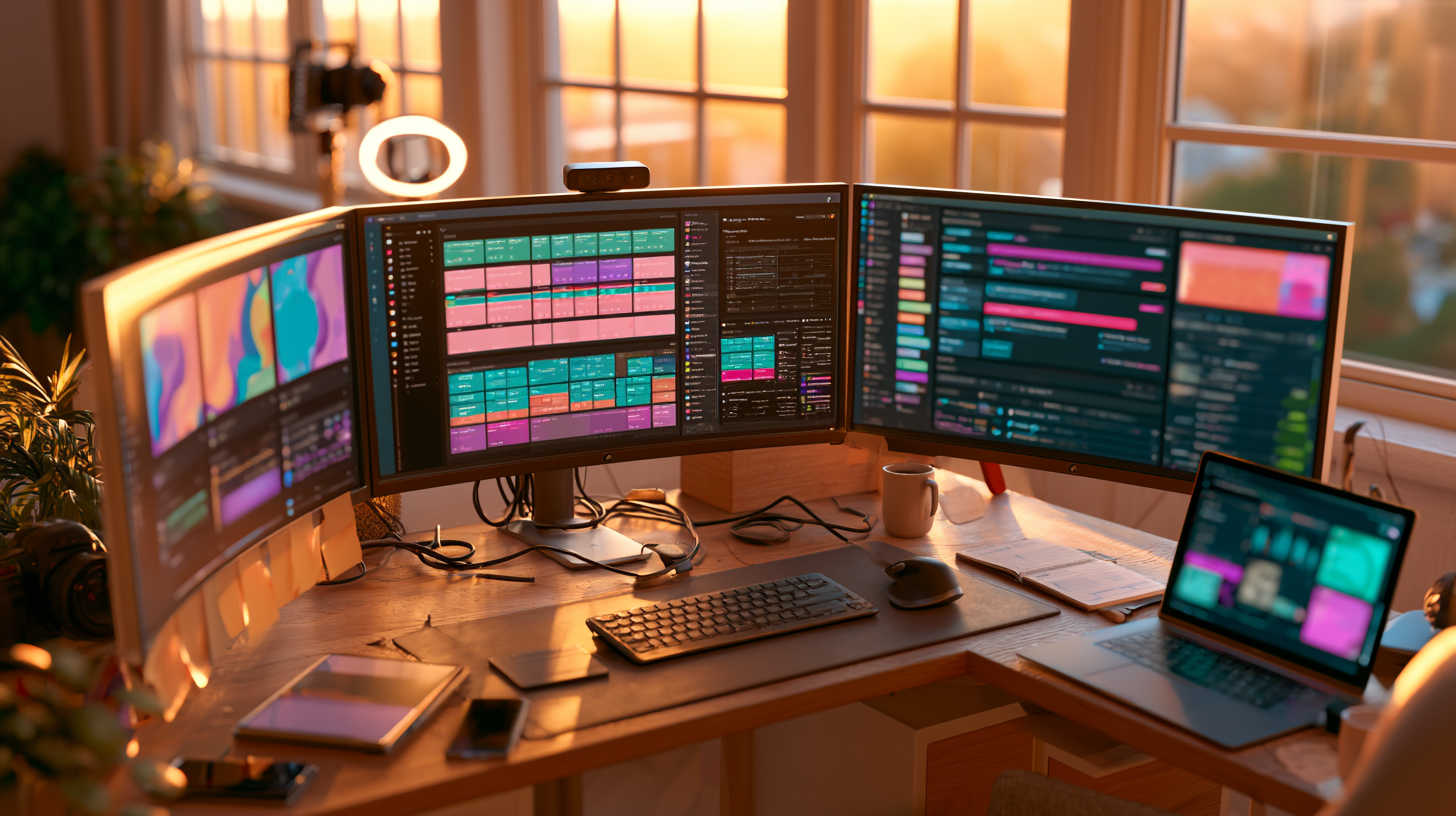
Working From Home at a Connected Desk
Working from home only feels effortless when your desk is built to support it. The difference between a frustrating remote workday and a productive one usually comes down to five things: a reliable docking station, the right display setup, a chair that supports your body, stable internet, and a desk layout that keeps cables out of sight.
This guide breaks down every piece of a modern “connected desk,” with real specifications and prices, so you can build a home office that actually works as hard as you do.
What Is a Connected Desk?
A connected desk — sometimes called a smart desk — is a home office setup built around fast, simple connectivity rather than old-fashioned desk features like file drawers and tangled cable nests. Instead of juggling a dozen cables every time you sit down, a connected desk routes power, video, and data through a single hub, usually a USB-C or Thunderbolt docking station, so your laptop instantly becomes a full desktop workstation.
The core idea is convenience without sacrificing ergonomics. A well-designed connected desk combines:
- A docking station or hub for one-cable connectivity
- One or more external monitors positioned at eye level
- An adjustable, supportive chair
- A height-adjustable or sit-stand desk
- Wired or high-speed wireless internet
- Cable management to keep the surface and floor clutter-free
Why a Docking Station Is the Core of the Setup
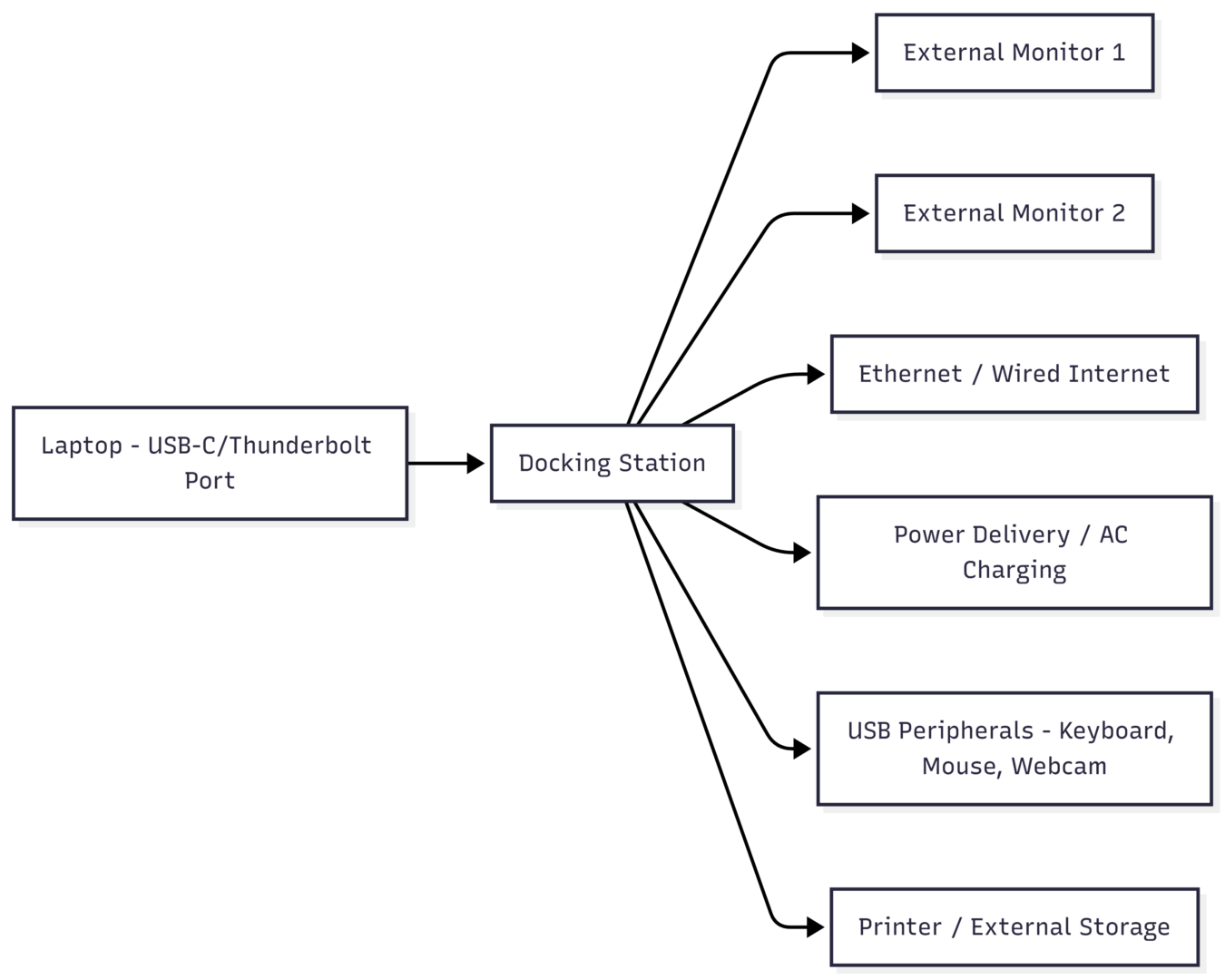
As laptops get thinner, manufacturers are replacing multiple ports with a single USB-C or Thunderbolt connector. A docking station solves the problem this creates: it lets you plug in one cable and instantly access monitors, Ethernet, external drives, printers, and power — turning a laptop into a full desktop workstation in seconds.
This matters most for hybrid workers who split time between a home office and a company office. A universal dock means you can use the exact same laptop in both locations without repacking a bag full of adapters every day.
How a Docking Station Connects Your Workspace
Key Benefits of a Docking Station
| Benefit | Why It Matters |
|---|---|
| Single-cable connection | One plug replaces 5–8 separate cables |
| Multi-monitor support | Most docks drive 2–3 external displays plus the laptop screen |
| Power delivery | Charges the laptop through the same cable — no separate AC brick needed |
| Consistent setup | Same laptop works identically at home and in the office |
| Cleaner desk | Cables route behind the dock instead of across the desktop |
| Cost savings | Removes the need for a second desktop computer |
What to Check Before Buying a Dock
- Port count and type: Confirm it has enough HDMI/DisplayPort outputs for your monitor count, plus USB-A, USB-C, and Ethernet.
- Monitor resolution support: Look for 4K at 60Hz support if you use high-resolution displays.
- Power delivery wattage: 65W–100W is typical; match it to your laptop’s charging requirement.
- Mounting style: Some docks clamp to the desk, others sit freestanding — check desk thickness compatibility if clamping.
- Compatibility: USB-C docks generally work across Windows and Mac; Thunderbolt docks offer higher bandwidth but cost more.
| Dock Type | Approx. Price | Best For |
|---|---|---|
| Basic USB-C hub (single monitor) | $30–$60 | Light use, single external display |
| Universal USB-C docking station | $80–$180 | Dual monitors, everyday hybrid work |
| Thunderbolt 4 docking station | $200–$320 | High-res dual/triple 4K monitors, power users |
Choosing the Right Laptop or Desktop
Your dock and monitors are only as good as the machine driving them. Here’s a snapshot of solid options across budgets and platforms.
| Device | Specs | Approx. Price |
|---|---|---|
| MacBook Air (M4, 13″) | M4 chip, up to 24GB RAM, supports 2 external displays, long battery life | $899 |
| Asus Zenbook S 16 | AMD Ryzen AI 9 365, Radeon 880M graphics, 24GB RAM, 16″ OLED, ~14-hr battery | $1,100 |
| Lenovo Chromebook Plus 14 | OLED display, ChromeOS, built-in AI features | $650 |
| Apple iMac (M4) | All-in-one desktop, M4 chip, nano-texture display option | $1,193 |
| Apple Mac Mini (M4) | Compact desktop, bring-your-own monitor and peripherals | $559 |
If you already work from a company-issued laptop, focus your budget on the dock, monitor, chair, and desk instead — those are the components that most directly affect comfort and daily efficiency.
Displays: The Multi-Monitor Advantage
Adding a second screen is one of the highest-impact upgrades for remote productivity, reducing the need to constantly switch windows. Mount monitors on adjustable arms so the top of the screen sits at or just below eye level, roughly an arm’s length away. This keeps your neck neutral and frees up desk surface space that would otherwise be taken up by monitor stands.
A common expert-recommended layout is one ultrawide monitor centered on the desk with a second monitor rotated vertically to the side — ideal for referencing long documents or chat windows without vertical scrolling fatigue.
Standing and Adjustable Desks
Alternating between sitting and standing throughout the day reduces the health risks associated with prolonged sitting and can improve focus during long work blocks.
| Desk | Key Features | Approx. Price |
|---|---|---|
| Branch Four Leg Standing Desk | Motorized legs, raises to 45″, two size options | $949 |
| Vari ComfortEdge Standing Desk | Sloped front edge, 4 programmable height presets | $769 |
| Room & Board Lincoln Electric Desk | Solid wood, classic design, hidden motorized lift | $5,399 |
| Flexispot Adjustable Table w/ Wheels | Rollable, gas-spring height adjustment up to 40.5″ | $80 |
| Staples Union & Scale FlexFit Converter | Manual-lever riser, fits on top of existing desk | $200 |
| Uplift Standing Desk | Cable-management grommets, highly customizable | Varies by config |
| Poppin Adjustable Double Desk | Shared workstation for two users, minimalist design | Varies by config |
| SmartDesk Dual Monitor | Built-in dual monitor mounting, compact footprint | Varies by config |
| Fezibo Triple Motor L-Shaped Desk | L-shape, ambient lighting, raised secondary shelf | Varies by config |
When choosing a desk, prioritize weight capacity (especially with dual monitor arms attached), the range of height adjustment, and how quietly the motor operates if you’re on frequent video calls.
Ergonomic Office Chairs
A chair with proper lumbar support, adjustable height, and armrests prevents the kind of physical strain that builds up over months of desk work.
| Chair | Notable Features | Approx. Price |
|---|---|---|
| Staples Dexley Mesh Task Chair | All-mesh, breathable, budget-friendly | $170 |
| Branch Ergonomic Chair Pro | Seat tilt function, optional headrest, fabric or leather | $499 |
| Herman Miller Embody | Back-support engineering, 12-year warranty | $1,995 |
| Anthros Chair V2 | Two-part backrest, free ergonomics consultation included | $1,887 |
If back pain is a recurring issue, prioritize chairs with adjustable lumbar depth and seat pan tilt over simple padding — spinal support matters more than cushioning for long-term comfort.
Laptop Stands for Flexibility
Not every workday happens at the same desk. A laptop stand adds stability and proper screen height wherever you’re working.
| Stand | Best For | Approx. Price |
|---|---|---|
| Rain Design mStand | Minimalist, single-piece aluminum, pairs well with Apple hardware | $40 |
| Nnewvante Bamboo Laptop Stand | Couch or bed use, adjustable angle, includes small storage drawer | $49 |
| Branch Adjustable Laptop Stand | Sturdy, collapsible, raises screen up to 7 inches | $65 |
| Logitech Casa Pop-Up Desk | Includes compact Bluetooth keyboard and trackpad, doubles as a stand | $180 |
Network and Connectivity
Remote work depends on a stable connection far more than most home networks are built for — video calls, large file uploads, and multiple connected devices all compete for the same bandwidth. A wired Ethernet connection through your docking station is the most reliable option for video-heavy workdays, since it avoids the interference and congestion that Wi-Fi can experience in a busy household.
If wired isn’t practical, a strong dual-band router positioned close to your desk, or a mesh Wi-Fi system for larger homes, is the next-best option. Fiber internet plans generally offer the most consistent upload speeds, which matter more than download speed for video calls and cloud syncing.
Ergonomics and Cable Management Checklist
- Position monitors so the top of the screen aligns with eye level
- Keep elbows at roughly 90 degrees when typing
- Use a cable tray or clips under the desk to secure cords, especially on height-adjustable desks where loose cables can snag
- Route all cables through the docking station rather than directly into the laptop
- Leave enough slack in cables to accommodate desk height changes without strain
Before You Buy: Employer Reimbursement
Many companies now offer a stipend or reimbursement for home office equipment, particularly for employees who work remotely full-time or in a hybrid arrangement. Before making a purchase, check with your HR or benefits coordinator — docking stations, monitors, and ergonomic chairs are commonly covered expenses.
Putting It All Together
A connected desk isn’t about buying the most expensive gear available — it’s about matching each component to how you actually work. A hybrid employee moving between home and office benefits most from investing in a quality docking station and a compact laptop stand.
A full-time remote worker with a dedicated home office gets more value from a standing desk, dual monitors, and a premium ergonomic chair. Start with the docking station, since it’s the hub everything else connects to, then build outward based on your budget, desk space, and whether you’re on a Mac or Windows machine.
Frequently Asked Questions
USB-C docks handle most everyday needs, including dual monitors at standard resolutions. Thunderbolt docks are worth the extra cost only if you’re running multiple 4K displays or need very high data-transfer speeds.
Two is the sweet spot for most remote workers. A single ultrawide monitor can also replace a two-monitor setup while taking up less desk depth.
If you experience stiffness or back pain from long sitting sessions, yes — alternating between sitting and standing throughout the day is one of the more evidence-supported ergonomic upgrades available.
For most people, it’s the docking station combined with a second monitor — this pairing has the biggest immediate impact on daily workflow and desk organization.
Please share this Working From Home at a Connected Desk with your friends and do a comment below about your feedback.
We will meet you on next article.
Until you can read, Parable of the Sheep and Goats: Verse, Meaning & Lesson


