
What Internet Speed Do I Need to Work From Home?
If you have ever been frozen on a Zoom call while your housemate buffers a 4K video, you already know the truth: Advertised speeds are a lie. What you actually need is a deep understanding of symmetrical bandwidth, concurrent device load, and bufferbloat.
After analyzing data from remote workers, university students, and power users, the consensus is clear: For a single professional working from home, you require a minimum of 100 Mbps download and 20 Mbps upload.
However, if you handle large file transfers (video editing, CAD) or have a household of 8-10 devices, you need to jump to 500 Mbps–1 Gbps with symmetrical fiber. Let’s dissect exactly why, using real specifications and hardware constraints.
The Baseline: Speed Tiers & Recommendations
Generalist advice often fails because it ignores concurrency (doing many things at once). The table below breaks down exactly what you need based on your workflow.
| User Profile | Daily Tasks | Recommended Speed (Down/Up) | Critical Spec |
|---|---|---|---|
| Light Worker | Email, Slack, 1-2 video calls, basic cloud docs. | 50 Mbps / 10 Mbps | Low latency (<50ms) |
| Standard Remote | 4-5 HD video calls, VPN, file transfers, 10+ browser tabs. | 100-300 Mbps / 20-50 Mbps | Stable Upload |
| Power User / Heavy Household | 8-10 devices (phones, TVs, laptops), 4K conferencing, RDP, large server uploads. | 500 Mbps – 1 Gbps / 100+ Mbps | Symmetrical Fiber |
| Creative Pro | 4K video editing, 100-person conference calls, massive database research. | 1 Gbps+ / 1 Gbps+ | Sub-10ms latency |
The Golden Rule: Do not look at download speeds alone. Your upload speed dictates how fast you send large files to your work server and how clear your screen-share looks.
Real-World Case Study: The “100-Person Call & Remote Desktop” User
Many users fall into a specific trap: high latency and low upload. One Reddit user described a nightmare scenario:
- Usage: Streaming research databases, remote desktop (RDP), work firewall, and video calls with 100+ people.
- Devices: 8-10 simultaneous connections (Phones, Computers).
- The Problem: Their current plan had 6–24 Mbps upload.
Why 24 Mbps fails here:
- RDP (Remote Desktop): Requires 2-5 Mbps consistent upload just for keyboard/mouse/clipboard sync. Spikes occur when refreshing the remote monitor.
- 100-Person Conference: WebRTC protocols (Zoom/Teams) require 3-8 Mbps upload per user for sending HD video. With 24 Mbps, your video will pixelate or drop.
- Work Firewall + VPN: Encryption overhead consumes roughly 15-20% of your raw bandwidth. A 24 Mbps connection effectively becomes 19 Mbps after VPN overhead.
The Verdict for this user: You do not need 1 Gbps download. You need 300 Mbps down / 100 Mbps up. The upload is non-negotiable.
The Symmetrical Advantage: Fiber vs. Cable vs. 5G
Not all internet is created equal. The physical medium changes your experience drastically.
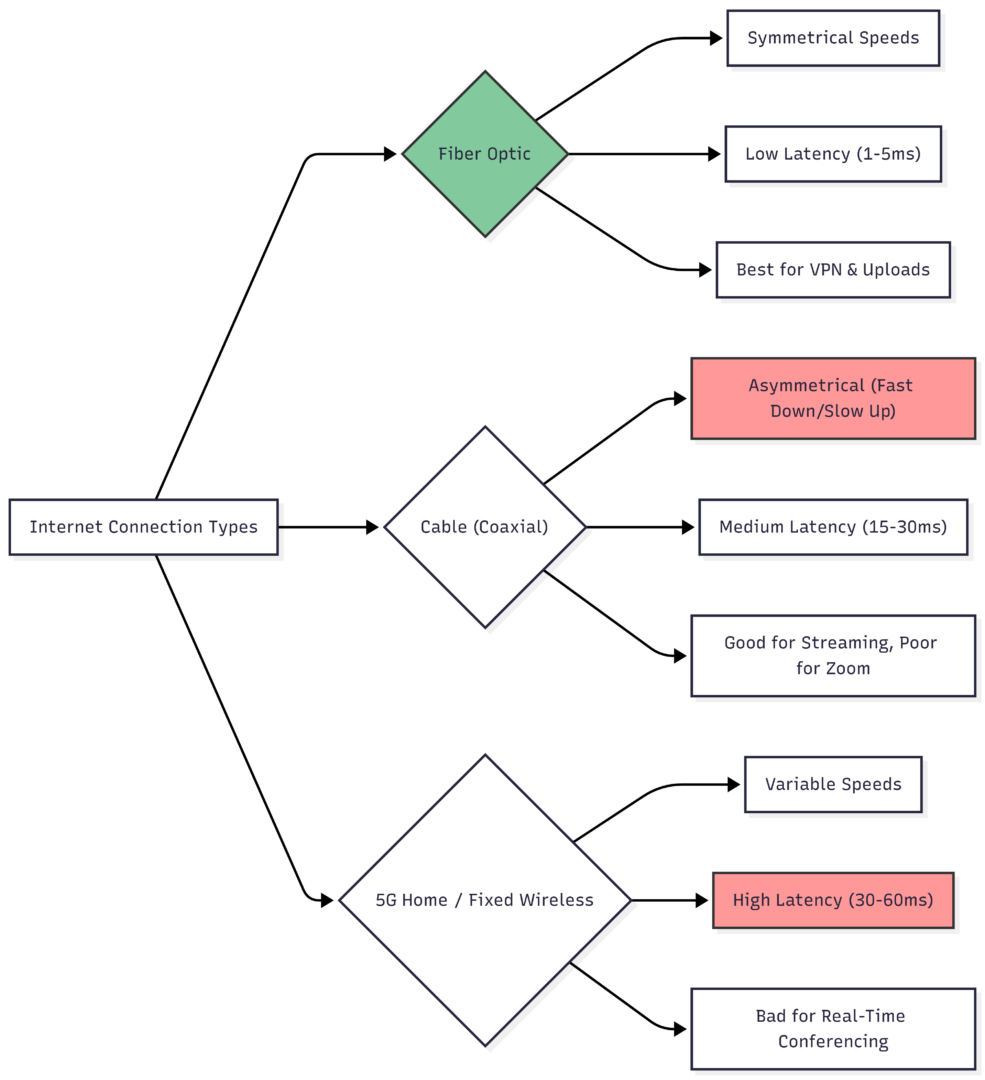
Specifications by Type
| Connection Type | Download Speed | Upload Speed | Latency (Ping) | Work From Home Grade |
|---|---|---|---|---|
| Fiber (e.g., Verizon, AT&T, GFiber) | 300 – 8,000 Mbps | Symmetrical (Same as Down) | 1-5 ms | A+ (Best) |
| Cable (e.g., Xfinity, Spectrum) | 100 – 2,000 Mbps | 10 – 50 Mbps (Asymmetrical) | 15-30 ms | B (Usable but laggy upload) |
| 5G Home (T-Mobile, Verizon) | 50 – 1,000 Mbps | 10 – 50 Mbps | 20-50 ms | C (Variable) |
| DSL / Satellite | 10 – 100 Mbps | 1 – 5 Mbps | 100+ ms | F (Avoid) |
Conclusion: If you have access to Fiber, buy it. The symmetrical upload is the secret weapon for remote work.
Bandwidth Breakdown: How Much Each Task Steals
To calculate your needs, add up the “Active Usage” of every device in your home during work hours.
| Activity | Download Required | Upload Required | Priority |
|---|---|---|---|
| Zoom/Teams (HD Video + Screen Share) | 3.8 Mbps | 4.0 Mbps | Critical |
| Zoom 100+ Participants (Receiving) | 8-12 Mbps | 6 Mbps | Critical |
| VPN Connection (Overhead) | +20% of total | +20% of total | High |
| Remote Desktop (RDP/VNC) | 2 Mbps | 5 Mbps | High |
| Streaming Netflix/YouTube (4K) | 25 Mbps | 0.5 Mbps | Medium |
| Cloud Backup (Dropbox/OneDrive) | 1 Mbps | 10+ Mbps | Medium |
| Gaming (Steam/PS5) | 40 Mbps (Download) | 2 Mbps | Low |
| IoT / Smart Home (Background) | 5 Mbps | 1 Mbps | Low |
The Math for a “Heavy Household” (2 Workers + 2 TVs):
- Worker 1: Zoom (4 up) + RDP (5 up) + VPN (20% overhead) = ~11 Mbps up.
- Worker 2: Teams (4 up) + Cloud backup (10 up) = ~14 Mbps up.
- TVs: 2x 4K Streams (50 Mbps down total).
- Total Required: 75 Mbps down / 25 Mbps up.
This is why 100/20 is the floor. If your current plan tests at 24 Mbps upload, you are already in the danger zone.
The Hardware Trap: Why Your Router is Killing Your Speed
You can pay for 1 Gbps fiber, but if you use an ISP-provided router from 2018, you will get 100 Mbps. Specifications matter.
Router Specifications Checklist
- Wi-Fi Standard: Must be Wi-Fi 6 (802.11ax) . Wi-Fi 5 (ac) cannot handle 8-10 concurrent devices efficiently.
- Processor: Look for a Dual-core 1.5GHz+ chip. Cheap routers crash under VPN load.
- Ethernet Ports: Must be Gigabit (10/100/1000) . If the port says “Fast Ethernet” (10/100), your max speed is 100 Mbps, regardless of your plan.
Immediate Fix: The Ethernet Rule
For critical meetings, Wi-Fi is the enemy (interference, distance, channel congestion).
- Action: Plug directly into the router via Cat5e or Cat6 Ethernet cable.
- Result: Latency drops to near zero. Jitter (signal variation) is eliminated.
Price & Provider Specifications (US Market 2026)
Here is how to shop based on your “Work From Home” tier.
For the Standard Remote Worker (100-300 Mbps)
- Verizon Fios: $49.99/mo for 300/300 Mbps (Symmetrical).
- AT&T Fiber: $55.00/mo for 300/300 Mbps.
- Xfinity (Cable): $60.00/mo for 400/20 Mbps. Note: The 20 Mbps upload is a bottleneck.
For the Power User (1 Gbps)
- Google Fiber (GFiber): $70.00/mo for 1,000/1,000 Mbps. (Best reliability score).
- Ziply Fiber: $80.00/mo for 2,000/2,000 Mbps.
- Frontier: $79.99/mo for 1,000/1,000 Mbps.
Avoid These at All Costs
- Satellite (HughesNet, Starlink): High latency (600ms+) kills VoIP.
- Mobile Hotspot: High jitter destroys video calls.
- DSL (CenturyLink, Windstream): Max upload usually 10 Mbps.
How to Diagnose Your Current Connection
Do not guess. Run these tests while your housemate is streaming Netflix.
- Speedtest.net (Ookla): Look at Upload Speed and Latency (Ping) . If ping > 100ms, you cannot do voice calls.
- Fast.com (Netflix): Scroll down to “Show More Info.” This shows Latency while loaded (bufferbloat). If unloaded ping is 10ms and loaded ping is 200ms, your router is choking.
Decision Matrix based on test results:
- Latency < 30ms & Upload > 20 Mbps: You are fine. Keep your plan.
- Latency 30-100ms & Upload 10-20 Mbps: Upgrade to a “Performance” tier or switch to Cable.
- Latency > 100ms or Upload < 10 Mbps: Cancel immediately. Switch to Fiber or 5G Home.
FAQ: Remote Work Internet Myths
No. Zoom only uses 4-6 Mbps. You need high speed for concurrency—downloading a game update while on a call while your partner streams 4K. 1,000 Mbps is about total household capacity, not the call itself.
Yes. A VPN encrypts and reroutes traffic. You lose 20-40% of your raw speed. If you need 20 Mbps for a video call after VPN, you need a 100 Mbps base plan.
Technically, yes. But modern websites (heavy with Javascript/Ads) and Windows updates will saturate 25 Mbps instantly, causing lag. 50 Mbps is the true solo minimum.
Final Verdict: The Shopping List
When you call your ISP today, ask for this exact specification:
“I need a plan with at least 100 Mbps download and 20 Mbps upload, but I prefer symmetrical fiber. I have 10 devices. I need a Wi-Fi 6 router with Gigabit Ethernet ports.”
Do not settle for less than 20 Mbps upload. Your video calls, screen shares, and sanity depend on it.
Please share this What Internet Speed Do I Need to Work From Home? with your friends and do a comment below about your feedback.
We will meet you on next article.
Until you can read, How to Work From Home With a Baby