Future-Proofing Your Work-From-Home Setup
Remote work isn’t a temporary arrangement anymore — it’s the default for millions of employees, and the home office has become permanent infrastructure. But a setup that worked fine a couple of years ago often can’t keep up with heavier video calls, AI-powered tools, and longer stretches at the desk.
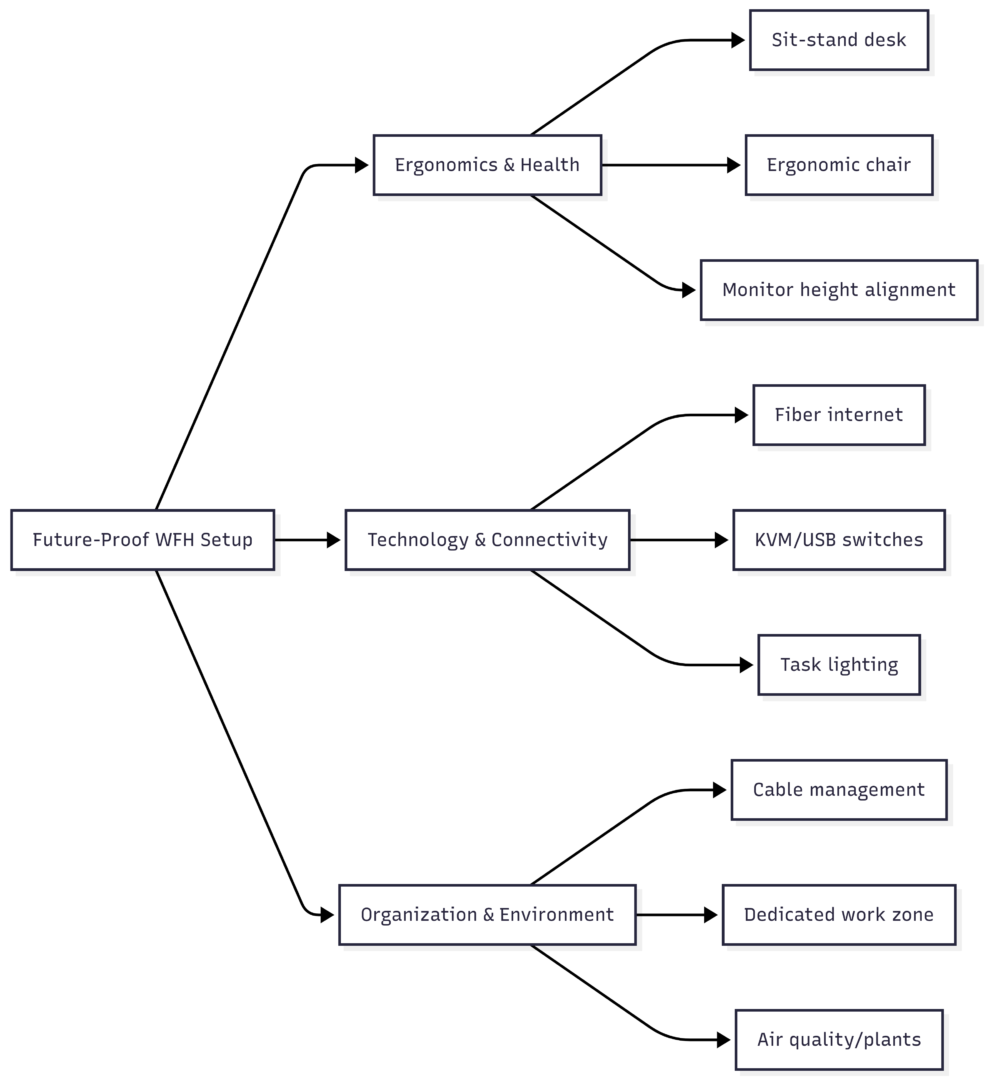
Future-proofing your home office means building around three pillars: ergonomics that protect your body over years of use, technology that scales with new demands, and a physical space designed to keep you focused. Here’s how to build a setup that won’t need replacing every time your workload changes.
The Three Pillars of a Future-Proof Home Office
Pillar 1: Ergonomics and Long-Term Health
The biggest risk to a home office setup isn’t outdated hardware — it’s the physical toll of years spent at a desk. Investing in adjustable, supportive furniture now prevents pain, fatigue, and productivity loss later.
Core Ergonomic Upgrades
| Item | Purpose | Price Range |
|---|---|---|
| Sit-stand desk | Alternates sitting and standing to reduce strain | $300–$950 |
| Ergonomic office chair | Lumbar support, adjustable tilt and height | $170–$2,000 |
| Monitor arm | Positions screen at eye level, frees desk space | $40–$150 |
| Ergonomic keyboard | Reduces wrist strain, split/contoured design | $30–$350 |
| Ergonomic mouse | Reduces repetitive strain on wrist and forearm | $25–$100 |
| Footrest | Improves circulation and posture while seated | $20–$60 |
| Laptop stand | Raises screen height for proper neck alignment | $40–$70 |
A well-known ergonomics study found that employees given a properly fitted ergonomic chair reported fewer physical symptoms and a measurable productivity gain over those using standard seating. The takeaway holds up over time: comfort is directly linked to output, not just wellbeing.
Monitor and Posture Alignment
- Mount the monitor so the top of the screen sits at or just below eye level
- Position the screen roughly an arm’s length away
- Keep elbows at approximately 90 degrees while typing
- Use a footrest if your feet don’t rest flat on the floor when seated at the correct desk height
A Sustainable Movement Rhythm
Long, unbroken sitting sessions are one of the biggest long-term health risks of desk work. A simple, repeatable movement pattern helps offset this without disrupting focus:
| Phase | Duration | Activity |
|---|---|---|
| Sit | 20 minutes | Focused work at the desk |
| Stand | 8 minutes | Continue working at standing height |
| Move | 2 minutes | Walk, stretch, or step away from the screen |
This 20-8-2 rhythm keeps blood flow consistent throughout the day and is easy to automate with a smartwatch or desktop reminder app.
Pillar 2: Scalable Technology and Connectivity
Hardware becomes outdated fast, but the technology decisions that matter most for future-proofing are the ones that scale — your internet connection, your ability to switch between devices, and your ability to adopt new software without a full hardware overhaul.
Internet: The Foundation Everything Else Depends On
Cloud storage, video conferencing, and increasingly demanding AI tools all put pressure on your internet connection — particularly upload speed, which is often the bottleneck during video calls and file syncing.
| Connection Type | Download Speed | Upload Speed | Future-Proof Rating |
|---|---|---|---|
| DSL | 5–100 Mbps | 1–20 Mbps | Low |
| Cable | 100–500 Mbps | 10–35 Mbps | Moderate |
| Fiber | 300 Mbps–2 Gbps | 300 Mbps–2 Gbps (symmetrical) | High |
| 5G Home Internet | 100–900 Mbps | 10–50 Mbps | Moderate |
Fiber currently offers the best future-proofing value because upload speeds match download speeds — critical as video calls, cloud backups, and large file uploads become a bigger part of daily work.
Modular and Scalable Accessories
Rather than replacing your entire setup every time your needs change, modular accessories let you adapt incrementally:
| Accessory | Function | Price Range |
|---|---|---|
| USB-C/Thunderbolt docking station | Single-cable connection to monitors, power, peripherals | $80–$320 |
| KVM switch | Share one keyboard/mouse/monitor between two computers | $40–$150 |
| Monitor light bar | Reduces glare and eye strain during long sessions | $40–$100 |
| Noise-cancelling headphones | Blocks distractions, improves call clarity | $100–$350 |
| Smart plug/assistant hub | Automates lighting, monitors, and appliances | $25–$150 |
| External SSD | Fast, portable backup and file transfer | $60–$200 |
A KVM switch is particularly useful if you split time between a personal and a work computer, letting you use a single monitor and keyboard setup without constantly re-plugging cables.
Preparing for AI and Advanced Software Tools
Generative AI tools are increasingly part of daily workflows, from writing assistants to data analysis tools. Most everyday AI tools don’t require specialized hardware, but a few considerations keep your setup ready as usage grows:
- RAM: 16GB is a reasonable future-proof minimum for most knowledge work; 32GB+ if you run multiple heavy applications or local AI tools simultaneously
- Processor: A recent-generation multi-core CPU handles both everyday tasks and more demanding AI-assisted workflows without lag
- Internet reliability: Cloud-based AI tools depend entirely on a stable connection, making this a bigger factor than raw computer specs for most users
- Storage: An SSD (rather than an older HDD) significantly speeds up application loading and file access
Video Conferencing Optimization
Since video calls are now a daily fixture of remote work, a few upgrades pay off disproportionately:
- A dedicated webcam (1080p or higher) improves image clarity over most built-in laptop cameras
- A USB microphone or headset improves audio clarity far more than camera quality does for how professional a call sounds
- Upload bandwidth matters more than download speed for smooth video calls — this is where fiber has a clear advantage over cable or DSL
Pillar 3: Organization and Environment
A cluttered, poorly defined workspace undermines even the best hardware. The physical environment around your desk affects focus just as much as the equipment on it.
Cable Management
- Use under-desk cable trays to route wires away from the floor and desk surface
- Secure loose cables with velcro straps rather than zip ties, since velcro can be repositioned as your setup changes
- Choose cable lengths with enough slack to accommodate a sit-stand desk’s full height range without pulling or disconnecting
Creating a Dedicated Work Zone
Separating your workspace from relaxation areas helps maintain a mental boundary between “work mode” and “home mode” — a distinction that’s easy to lose when your office is also your living room.
- Choose a quiet, low-traffic area away from the kitchen, TV, or bedroom if possible
- If you don’t have a separate room, use a dedicated desk that’s only used for work, so your brain associates that specific spot with focus
- Add a physical divider, curtain, or bookshelf if you’re working in a shared or open space
Air Quality and Mood
Low-maintenance indoor plants improve air quality and have been linked to reduced stress and improved focus in workspace studies. Options that require minimal care include:
| Plant | Maintenance Level | Approx. Price |
|---|---|---|
| Aloe vera | Very low | $10–$15 |
| Peace lily | Low | $15–$30 |
| Snake plant | Very low | $15–$35 |
| Succulent set | Very low | $20–$25 |
Budgeting Your Future-Proof Upgrade
Not every upgrade needs to happen at once. Here’s a practical way to prioritize spending based on impact.
| Priority Tier | Focus Area | Approx. Total Investment |
|---|---|---|
| Essential | Internet upgrade, ergonomic chair, monitor arm | $400–$900 |
| Recommended | Sit-stand desk, docking station, noise-cancelling headset | $600–$1,400 |
| Advanced | Dual monitors, KVM switch, smart lighting/assistant setup | $500–$1,200 |
Before making any purchase, check whether your employer offers a remote work stipend — many companies now cover part or all of home office upgrades, particularly for connectivity and ergonomic equipment.
Conclusion
Future-proofing a home office isn’t about buying the most expensive gear available today — it’s about choosing furniture and technology that can adapt as your work changes. Prioritize a stable, high-upload-speed internet connection first, since nearly everything else (video calls, cloud tools, AI-assisted work) depends on it.
Layer in ergonomic furniture next, since physical strain compounds over years and is far more expensive to fix later than to prevent now. Finally, round out the setup with modular accessories and a well-organized environment that can flex as your tools and habits evolve. A setup built this way won’t need a full overhaul every time technology shifts — it’ll simply adapt alongside it.
Frequently Asked Questions
A fiber internet connection, since its symmetrical upload and download speeds support video calls, cloud tools, and AI-assisted workflows better than cable or DSL.
It’s one of the highest-value ergonomic upgrades available, since it directly addresses the long-term health risks of prolonged sitting, but it’s not strictly required if you already maintain a consistent movement routine.
16GB is a reasonable minimum for most remote work; 32GB or more is worth considering if you frequently run multiple demanding applications or local AI tools at once.
Not necessarily — KVM switches are most valuable when you regularly switch between two or more computers, such as a personal and a work device sharing one monitor and keyboard.
If video calls stutter, uploads take unusually long, or your connection struggles when multiple people are online at once, it’s a sign your current plan — particularly its upload speed — isn’t keeping up with your workload.
Please share this Future-Proofing Your Work-From-Home Setup with your friends and do a comment below about your feedback.
We will meet you on next article.
Until you can read, 5 Common IT Problems When Work from Home